Every way to reach it at 3am, and everything it does once you’re awake. Look things up here rather than read it through.
Ways in
The app is quickest when you never open it. Pick one of these in daylight; at 3am it’s a press and a sentence. Every one of them stops by itself about eight seconds after you go quiet. The ones marked Recommended are the ones to start with.
iPhone
On a locked iPhone, iOS asks for Face ID before any app can start the microphone, so each of these begins as you look at the phone. Turning off Require Attention for Face ID (Settings → Face ID & Passcode) lets Face ID work with your eyes barely open. On an iPhone with a Home button, Touch ID does the same with a finger.
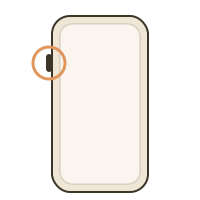
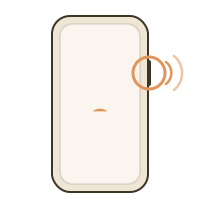
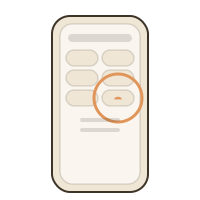
The Action Button Recommended
Press, talk, done. iPhone 15 Pro and Pro Max, and every iPhone 16 and 17, have one, on the left edge where the mute switch used to be.
Settings → Action Button.
Swipe along to Controls, then choose “Speak a thought”.
That’s it. Nothing else to set.
At 3am Press it and lift the phone. Face ID unlocks as you look at it, and it’s listening. Talk, then stop; it saves itself. Press again to stop early.
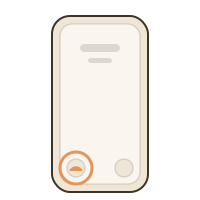
The Lock Screen button Recommended
The torch and camera buttons at the bottom of the Lock Screen can be swapped for ’Til Morning. iOS 18 or later.
Touch and hold the Lock Screen, tap Customise, then Lock Screen.
Tap the − on the torch or camera button.
Tap the + that replaces it, find ’Til Morning, and choose “Speak a thought”.
At 3am Wake the phone and press and hold the button. Face ID unlocks as you look at it, and it’s listening. Press it again to stop early.
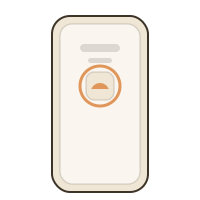
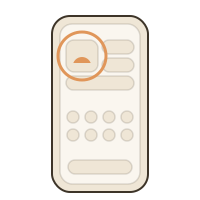
The Lock Screen widget
The mark, under the clock. Tap it and the app opens listening. Works on every iPhone this app runs on.
Touch and hold the Lock Screen, tap Customise, then Lock Screen.
Tap the space below the clock.
Find ’Til Morning and add it. The small circle is the mark; the wide one says “Say it”.
At 3am Wake the phone and tap the mark. Face ID unlocks as you look at it, and the app opens listening.
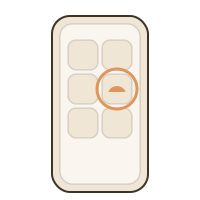
Control Centre
For phones without an Action Button. iOS 18 or later.
Swipe down from the top-right corner.
Tap + at the top-left, then Add a Control.
Find “Speak a thought” and tap it.
At 3am Swipe down and press and hold the control. Face ID unlocks as you look at it, and it’s listening. Press again to stop early.
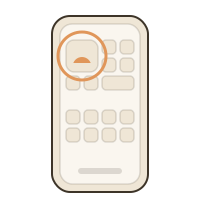
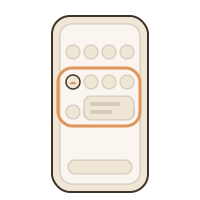
The Home Screen widget
Two of them: a small Capture widget that opens straight to listening, and a wide Last night one that shows what’s waiting.
Touch and hold the Home Screen until the icons wobble.
Tap Edit, then Add Widget (on older iOS, the +), and search for ’Til Morning.
Pick Capture or Last night, then Add Widget.
At 3am Unlock, tap the widget, talk. The wide one shows last night’s notes without opening the app.
Siri
Say “capture a thought in ’Til Morning”. Apple requires the app’s name in the phrase, so the short version doesn’t work.
Nothing to set up. It works once the app has been opened once.
“Capture a thought with ’Til Morning” works too.
If Siri doesn’t know it, open the Shortcuts app and look for ’Til Morning; it appears there by itself.
At 3am Press and hold the side button and say it. Face ID unlocks as you look at the phone, and the app opens listening.
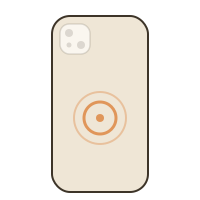
Back Tap
Two taps on the back of the phone run the capture shortcut. It works best without a thick case, and because it’s a tap it can fire in a pocket. Face ID unlocks the phone, and the app opens.
Settings → Accessibility → Touch → Back Tap.
Choose Double Tap.
Scroll to the Shortcuts section and pick Capture a Thought.
At 3am Tap the back twice and look at the phone. Face ID unlocks, and the app opens listening.
Android
The lock-screen notification Recommended
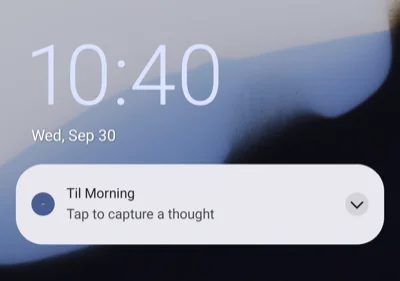
During your night hours a quiet notification sits on the lock screen; tap it and you’re recording, no PIN. It’s on by default, makes no sound, and is gone by day. Android has no Lock Screen widgets; this is the Lock Screen way in.
It’s already on. To check, or turn it off: ⋯ → Night hours → Reaching it → lock screen shortcut, then save.
The one phone setting that matters: Settings → Notifications → Notifications on lock screen must not be set to “Don’t show any notifications”. Android’s default, “Show conversations, default, and silent”, is fine.
If you’ve ever turned it off in the shade: Settings → Apps → Til Morning → Notifications → Lock screen shortcut, on.
At 3am Wake the phone, tap the notification itself, talk. The card is drawn by Android, so it’s light or dark to match your phone. After a restart it comes back once you’ve unlocked once.
On the lock screen, with Android’s default settings.
The Quick Settings tile
A tile called Capture a thought in the pull-down shade. Android 7 or later.
Pull the shade all the way down.
Tap the pencil (edit).
Drag Capture a thought up into the active tiles.
At 3am Wake, pull down, tap the tile, talk. No unlocking.
The home screen widget
A small square one for capture, and a wide one that shows last night’s notes.
Touch and hold an empty part of the home screen.
Tap Widgets and find Til Morning.
Drag out the small square (capture) or the wide one (last night).
At 3am Unlock, tap the widget, talk. The wide one shows last night’s notes.
The app shortcut
Hold the app icon and Capture a thought is right there.
Touch and hold the Til Morning icon.
Tap Capture a thought.
Or drag that shortcut out onto the home screen as an icon of its own.
At 3am Unlock, hold the icon, tap, talk.
What it does
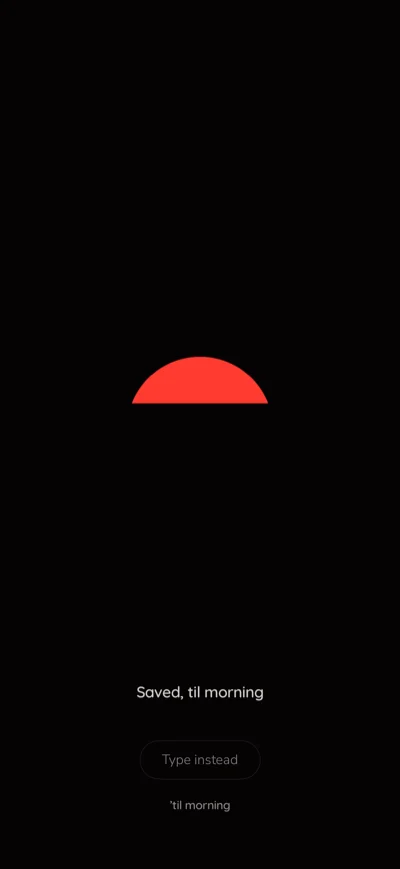
Two faces. A near-black one at night that only listens, and a cream one in the morning that holds what you said. The same on iPhone and Android, with the differences marked.
Night hours, and the escape
Between the hours you set, 9pm to 6am to begin with, the app opens to the night face: one button, no clock, nothing to read. The rest of the day it opens to the morning face. ⋯ → Night hours on the morning face is the app’s only settings screen; set it to whatever your nights look like.
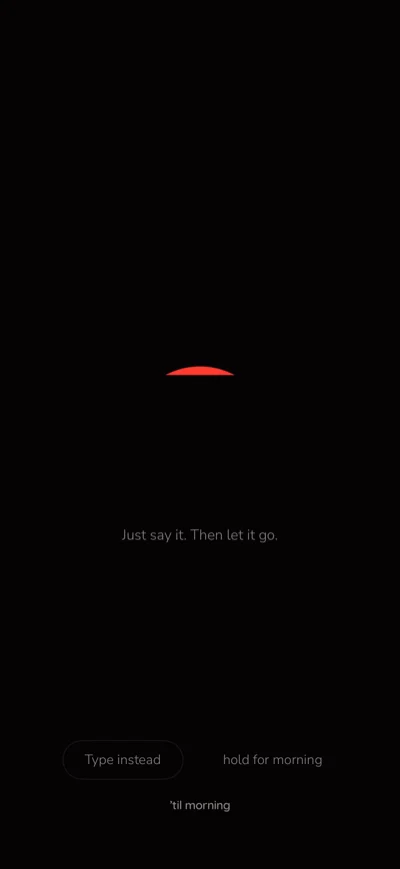
The night face doesn’t show your notes, on purpose: reading is what wakes you up properly. If you need the morning face at 2am, hold “hold for morning” at the bottom of the night face for half a second. It lasts until you leave the app, and the morning face shows “it’s still night — back to capture” so you can get back.
The night face, with the escape at the bottom.
The morning inbox
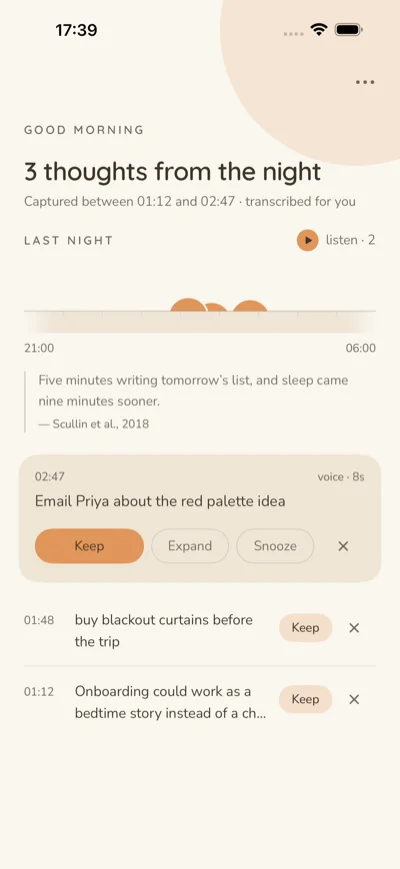
Each night’s notes, transcribed on the phone while you slept and given a title. Four things to do with each one: Keep it, Expand it (share it on to wherever it belongs: Notes, Reminders, Notion, Todoist, mail), Snooze it to another morning, or Delete it. Kept notes move to their own list.
If a note has no words, the recording is still there; tap it to hear what you said. A morning notification, if you want one, says only how many are waiting, never what they say.
Three thoughts from the night.
Listen
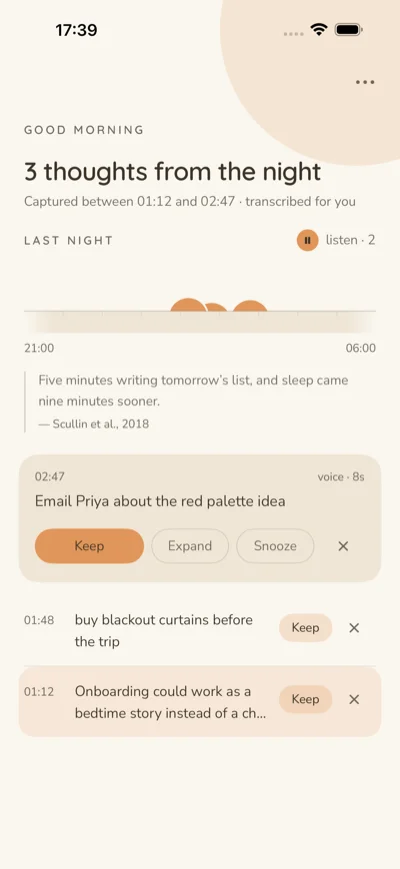
listen · 2 on the Last night row plays the night’s voice notes in order, oldest first, a second apart, through the speaker. Lock the phone and it carries on; the lock screen shows only “Last night” and “2 of 3”, never your words. Pull out your headphones and it pauses rather than carrying on aloud; a call pauses it, and it picks up again afterwards.
Each note also has its own listen button, with the recording’s length.
The night, playing.
Export
Your notes are never locked in. Every one can leave as a file, and all of them can leave at once.
One note: open it and tap Export: a Markdown file, plain text, the recording, or Copy as Markdown.
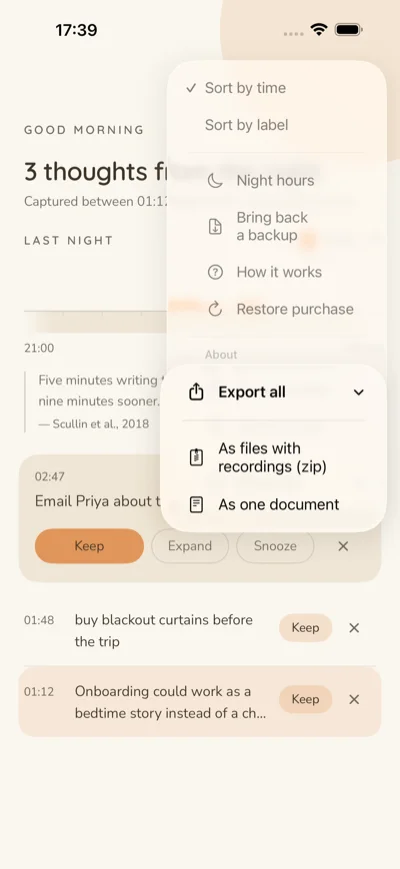
Everything:⋯ → Export all. A zip with one .md per note and the recordings beside them, or everything in one combined document.
Back in:⋯ → Import a backup. Pick that zip, and the notes return as they were, recordings included. Notes already on the phone are skipped.
What a file looks like: it’s named by date and time, like 2026-07-24-0247-onboarding-as-a-bedtime.md. At the top is a short block of facts: when it was captured, whether it was spoken or typed, its title and label, and the recording’s filename. Then your words. Any Markdown app reads it, and that block is what Import uses to put it back exactly.
⋯ → Export all, on iPhone.
Keep, and restoring it
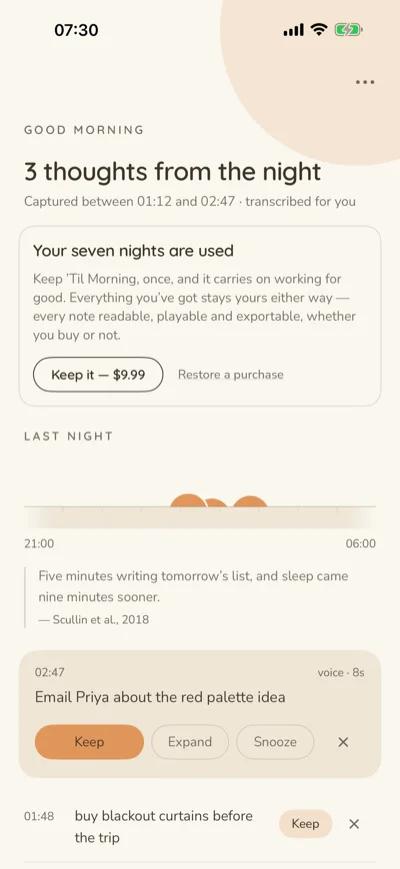
Free for seven nights: nights you actually use it, not calendar days. The morning after the night that goes past seven, the inbox asks once. Keep is $9.99, paid once; there’s no subscription. Everything you already have stays readable, playable and exportable whether you buy or not. Keep is for capturing more nights.
Buying: tap Keep it on the card. The store handles the payment; the app never sees your card.
A new phone: sign into the same Apple ID or Google account and Keep comes back by itself the first time the app opens.
If it doesn’t:⋯ → Restore purchase on the morning face, or Restore a purchase on the card. It says plainly what it found.
Deleting and reinstalling the app doesn’t restart the seven nights; they’re remembered.
The card, the morning after.
Privacy
No account. No network: the Android app doesn’t even have permission to use the internet, and the iPhone app has no networking code in it. Recording and transcription happen on the phone, so what you say at 3am stays there. No analytics, no crash reporting.